Pink Clover Frames, Borders, Patterns: A Practical Guide to Getting the Most from Your Design Assets
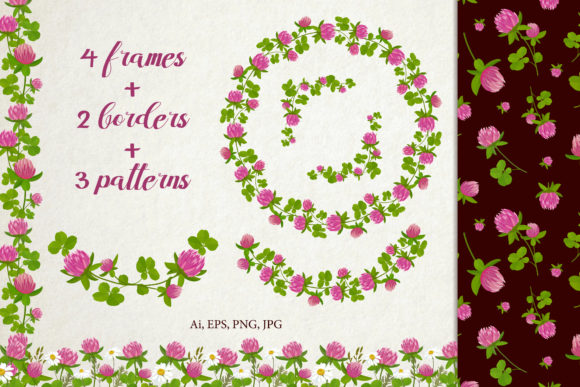
When you invest in a design asset bundle like Pink Clover Frames, Borders, Patterns, you are buying more than files — you are buying time, consistency, and visual polish. This set includes a shared AI file, nine EPS10 files, six PNG files with frames and borders on empty backgrounds (sizes from 3000 px), and three JPG pattern files at 3600x3600 px. That is a generous range of formats and resolutions. Yet many people download a bundle like this and immediately make choices that limit what they get out of it. Small missteps in how you open, edit, or apply these assets can lead to frustration, wasted time, or results that look far less polished than what you saw in the preview. Let us walk through the most common pitfalls and, more importantly, how to avoid them so you can use every file with confidence.
Understanding What You Actually Have in the Bundle
The variety of formats in this set is a strength, but only if you understand what each one is for. The shared AI file gives you an editable, layered workspace in Adobe Illustrator. The nine EPS10 files are vector formats that preserve crisp edges at any scale. The six PNG files are ready-to-use raster images with transparent backgrounds, each at 3000 px on the longest side. And the three JPG pattern files are high-resolution seamless repeats at 3600x3600 px. A common mistake is treating all these files as interchangeable. They are not. Using a PNG where you needed an editable vector, or opening an EPS10 without knowing how to handle it, can make the work harder than it needs to be.
Take a moment to open the AI file first. This is the master file, and it gives you access to individual elements, layers, and color swatches. If you only ever use the PNG files, you are leaving control on the table. The AI file lets you adjust colors, resize components independently, and combine elements in ways the static images cannot. That is where the real flexibility lives.
Overlooking Resolution and Scaling
The PNG files in this set are 3000 px on an empty background, which is excellent for web use, digital presentations, and moderate print sizes. But here is where people slip: they scale these PNGs up beyond their native resolution. Stretching a 3000 px PNG to fit a large banner or poster will introduce softness and pixelation. The vector files — the AI and EPS10 — resolve this completely. They are mathematically defined and can scale to any size without losing sharpness. If your project demands a large print, skip the PNG and work from the vector files. Export at the resolution you need from there.
Another overlooked detail: the JPG patterns are 3600x3600 px, which is generous, but they are still raster images. If you stretch them too far in a layout, the repeat pattern may look blurry or the tile edges may become visible. For large-scale pattern applications like wallpaper, fabric, or billboards, consider using the vector AI file to create a seamless pattern tile at your target size. That gives you infinite scalability and crispness no matter how big you go.
Ignoring the Shared AI File Structure
Many users open the AI file, see a lot of layers, and get intimidated. They jump straight to the EPS10 or PNG files because those feel simpler. But the AI file is organized for a reason. The shared AI file in Pink Clover Frames, Borders, Patterns typically groups frames, borders, and pattern elements into separate layers with sensible naming. If you take a few minutes to understand the layer structure, you can edit colors, remove elements, combine frames with different borders, and create custom compositions that look bespoke.
A practical approach: open the AI file, unlock all layers, and hide everything except one frame. Duplicate that frame layer and experiment with recoloring using the Global Swatches if they are included. This takes five minutes and opens up a hundred possibilities. If you only ever use the pre-rendered PNGs, you are limited to exactly those color combinations and arrangements. The AI file is your customization engine.
Choosing the Wrong File for the Wrong Task
Let us look at realistic scenarios. Suppose you are a small business owner designing social media graphics. The PNG files with transparent backgrounds are ideal. You can drop them directly into Canva, Photoshop, or even PowerPoint without extra steps. But if you are a print designer working on a wedding invitation suite, the EPS10 files are better because they embed cleanly into layout software and scale without artifacts. If you are a surface pattern designer developing a fabric print, the AI file is where you will build your repeat and adjust scale and color.
Matching file type to task is not complicated, but it is often skipped. People grab whatever file is closest and force it to work. Instead, ask yourself: do I need editability? If yes, use AI or EPS10. Do I need a ready-to-place image? Use PNG. Do I need a seamless repeating background? Use the JPG patterns or build your own from the AI file. This simple question saves time.
Neglecting Backup and Organization
A less glamorous but crucial point: after downloading Pink Clover Frames, Borders, Patterns, store the files in a dedicated folder with clear naming. It sounds obvious, but I have seen too many creatives scatter assets across desktops, downloads folders, and cloud drives, only to waste twenty minutes hunting later. Create a folder called Pink Clover Assets and keep the AI, EPS10, PNG, and JPG subfolders intact. If you rename files, keep the original names somewhere so you can cross-reference with preview images.
Also, back up the download. The seller, Svetlana, has included a generous set of files, but you are responsible for preserving your copy. Cloud backup and an external drive give you peace of mind, especially if you use these assets in client work and need to revisit them months later.
Misunderstanding Licensing for Commercial Use
This is where many people make an expensive mistake without realizing it. The description says "Thank you for visiting my shop. If you have any questions, please contact me." That is an invitation to clarify terms. If you plan to use Pink Clover Frames, Borders, Patterns for commercial projects — selling products, client work, merchandise, or digital downloads — you must understand the license that came with your purchase. Some asset bundles allow unlimited commercial use; others have restrictions on redistribution, reselling, or use in templates.
Contact Svetlana directly if the license terms are not clear in the product listing. This is not being overly cautious — it is professional practice. A quick message can prevent a legal headache later. And if the license allows commercial use, keep a copy of the license file with your project files as proof.
Overusing Patterns Without Variation
The three JPG pattern files are beautiful and seamless, but using them as-is across an entire project can feel monotonous. A better approach: use the pattern in smaller doses — as a background panel, an accent border, or within a frame from the same set. Combine the pattern with a solid color pulled from the pattern itself to create visual breathing room. This gives your design depth and keeps the pattern from overwhelming other elements.
If you are working in the AI file, you can also scale the pattern tile up or down to change the density of the repeat. A larger repeat looks more subtle and modern; a smaller repeat feels more traditional and intricate. That kind of control is not available with the JPG files alone, but it is simple to do in the vector environment.
Relying Only on Default Colors
Pink Clover has a distinct color palette, but that does not mean you must stay within it. The AI file likely uses swatches that can be globally edited — change one swatch, and every instance updates. If your brand uses a different pink or a complementary green, adjust the swatches. This is one of the biggest missed opportunities I see: people use the assets exactly as downloaded, even when a quick color tweak would make them feel custom and on-brand.
For the PNG files, you cannot easily recolor them directly, but you can overlay them with blending modes or color overlays in your editing software. A multiply blend mode with a soft pink tint, for example, can shift the mood without losing the detail. Experiment before settling on the default look.
Not Testing Scale and Placement Early
Drop a frame into your layout, and it looks great at 100%. Then you resize it to fit your composition, and something feels off. This happens when you skip the step of testing at final size early. Open the AI or EPS10 file, place your frame or border into a mockup of your project, and scale it to the exact dimensions you need. Check how it interacts with text, images, and white space. Adjust before you commit.
The PNG files are 3000 px, which gives you a generous starting point, but if you shrink a frame too much, line thickness may look inconsistent with your typography. The vector files let you adjust stroke weights if needed. That kind of fine-tuning is what separates a good design from a great one.
Final Practical Advice for Using This Set Well
Start with the AI file and explore its structure before you reach for the ready-made exports. Understand which format serves each phase of your workflow. Keep your files organized and backed up. Clarify licensing if you are creating commercial work. Use patterns sparingly and thoughtfully, and do not be afraid to change colors or scale. Every file in Pink Clover Frames, Borders, Patterns was created to give you flexibility — the only limit is how you choose to use it.
If you run into a technical question or want to check something specific about the set, Svetlana has invited you to reach out. That direct line to the creator is a resource worth using. A quick question can save hours of second-guessing.
Creativity flows better when your tools are under control, not when you are fighting with file formats or squinting at pixelated edges. Take a few minutes to set yourself up properly, and this set of frames, borders, and patterns will serve you across countless projects with consistent, professional results.